Getting started with Quick Score
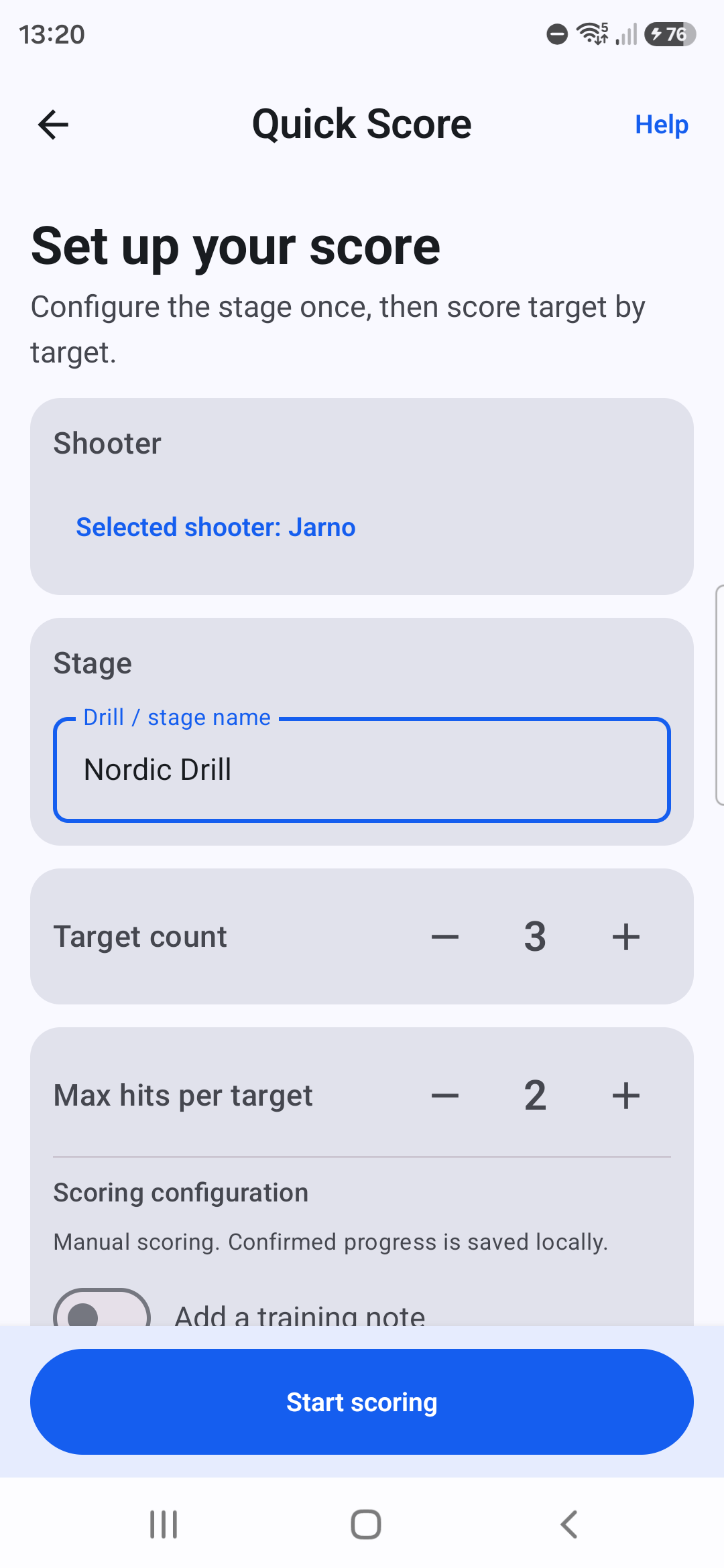
Quick Score records one shooter’s result. Configure the stage once, enter the elapsed time, then score each target in order.
Procedure
- Open Targune and choose Quick Score.
- Choose the Owner or an active Guest shooter.
- Enter the stage name, target count, and maximum hits per target. Enable a training note only if you want one with the saved result.
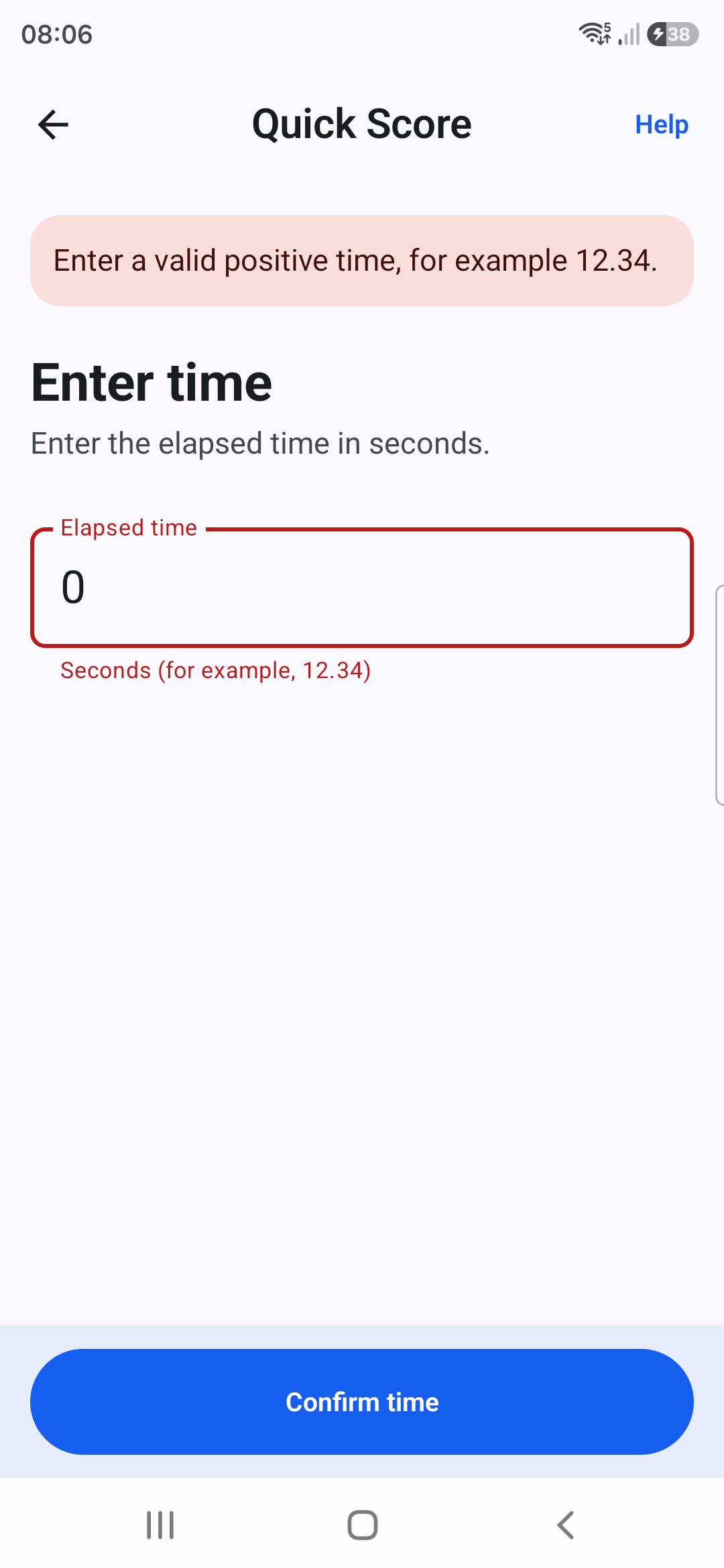
- Choose Start scoring, enter a positive elapsed time in seconds, and confirm it before Target 1.
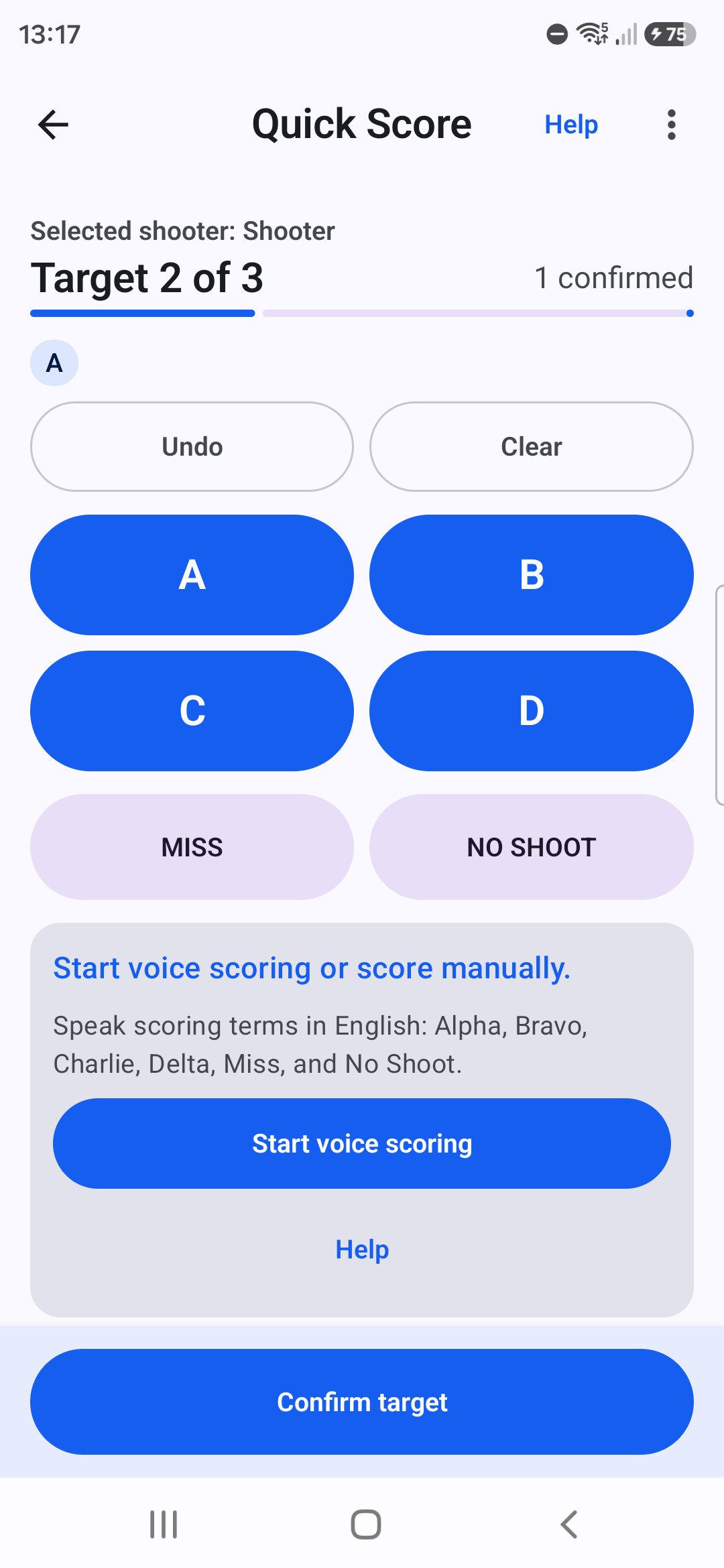
- Enter each called A, B, C, D, MISS, or NO SHOOT, review the visible input, and choose Confirm target.
Keep in mind
- Undo removes the latest unconfirmed entry.
- Clear removes all current unconfirmed target input.
- More actions opens Review targets, Pause, and Cancel.
Voice scoring
Voice scoring is optional assistive input. Recognition runs locally, expects English scoring vocabulary, and creates a proposal for you to review.
Procedure
- On an active target, choose Start voice scoring and grant microphone access if Android asks.
- Wait for the prompt, then speak terms such as Alpha, Bravo, Charlie, Delta, Miss, and No Shoot. Counts from one to six, double, and triple are supported.
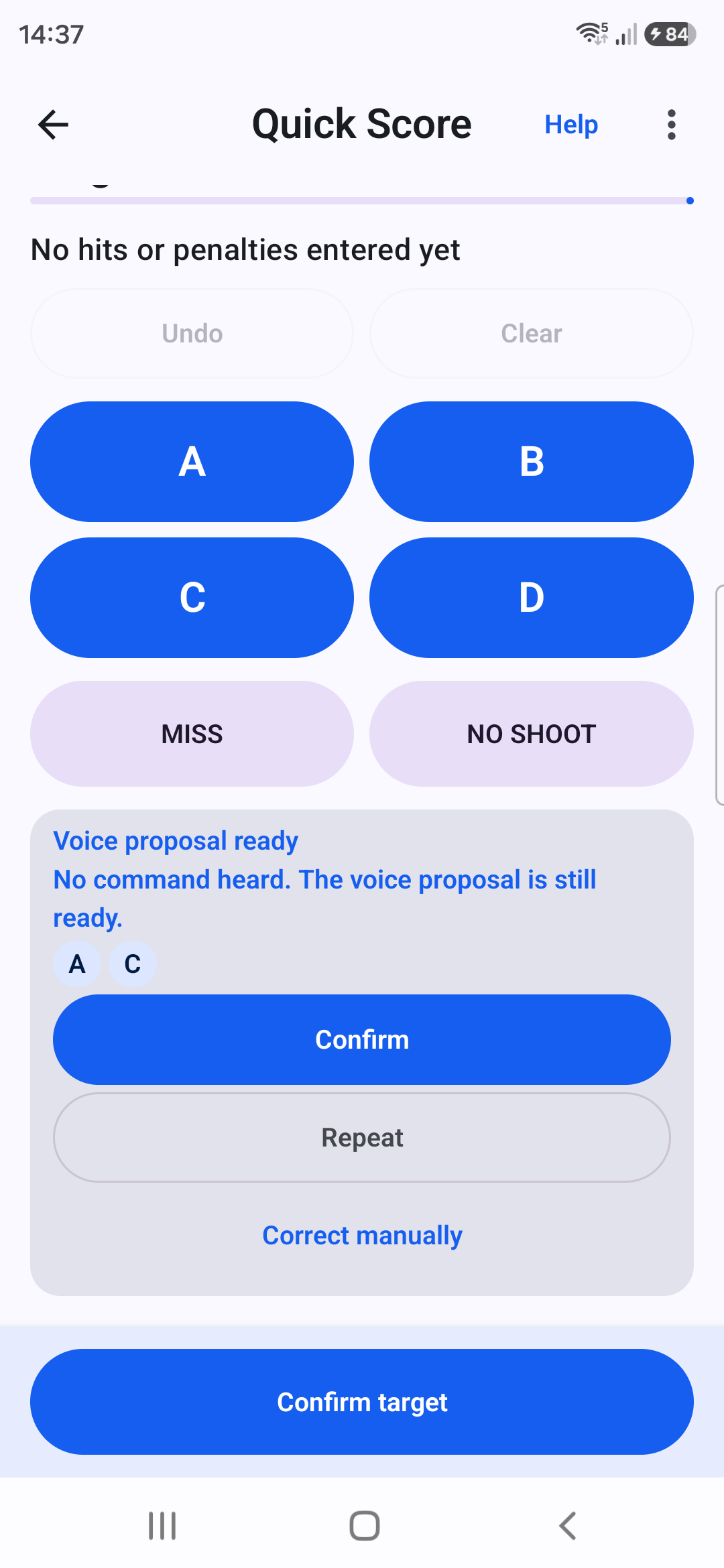
- Review the visible proposal. Use Repeat to hear it again or Correct to begin a supported spoken correction.
- Choose or say Confirm to add the proposal to the current target input.
- Review that target input and choose Confirm target. Accepting a voice proposal does not confirm the target by itself.
Correcting and confirming hits
Corrections happen at a deliberate review point, whether you entered the target manually or started with a voice proposal.
Procedure
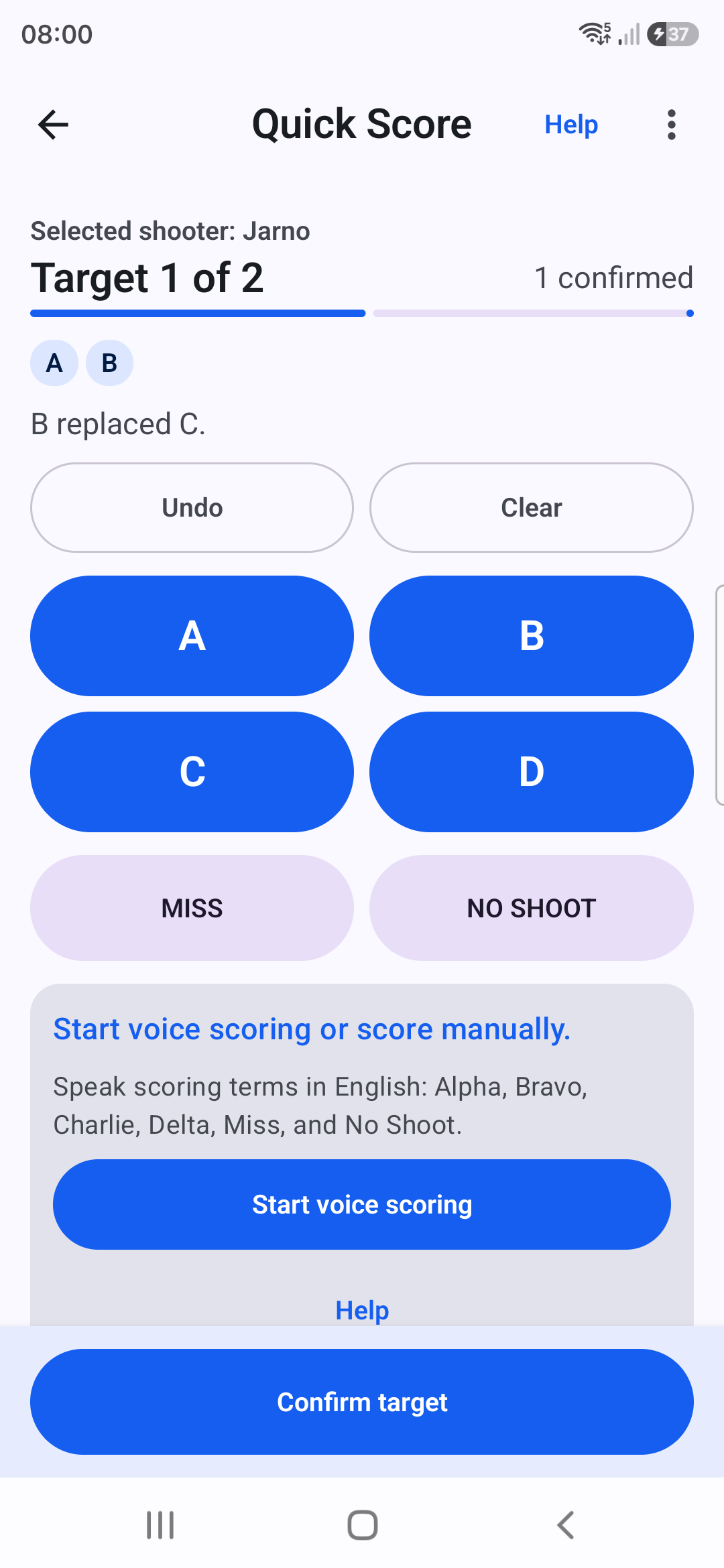
- Before confirming a target, use Undo or Clear and enter the intended hits and target-owned penalties again.
- For a voice proposal, use Correct or Correct manually while the proposal is visible, then review the revised input.
- To revisit a confirmed target, open More actions, choose Review targets, and choose Change for that target.
- Confirm the corrected target. Continue scoring and review the complete result at Final review before saving.
Keep in mind
- MISS and NO SHOOT belong to a target.
- Extra hits beyond the configured maximum are not used as scoring hits and remain visible in result detail when applicable.
- A stored result changes only after the later edit review is explicitly saved.
Penalties and time
Elapsed time and penalties are separate, reviewable parts of the result.
Procedure
- Enter a positive elapsed time in seconds, for example 12.34. Finnish decimal-comma entry such as 12,34 is accepted in the Finnish interface.
- Record MISS and NO SHOOT on the target where they occurred.
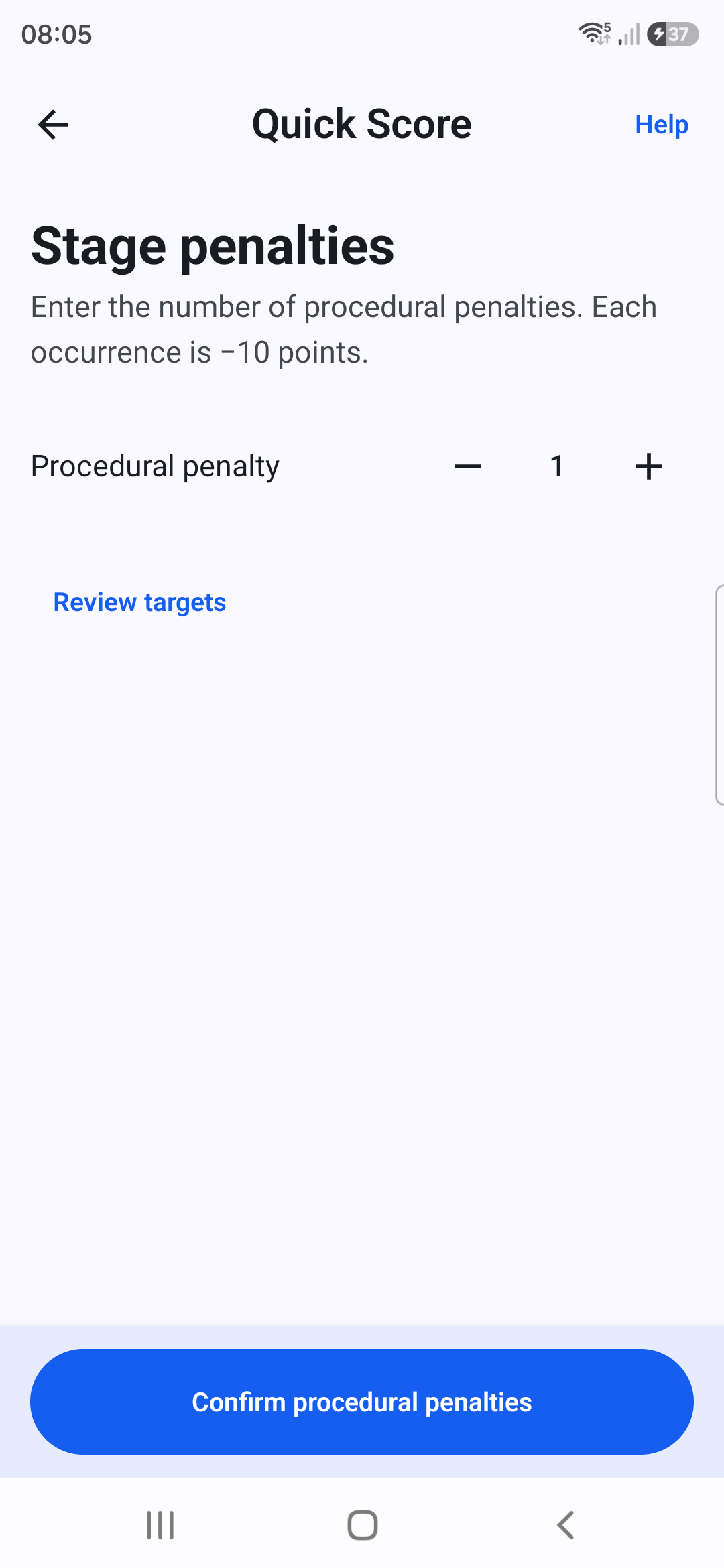
- At Procedural penalty review, use the stepper for the stage/result-level count. Each Procedural occurrence is −10 points; zero is valid.
- Use Review targets whenever you need to inspect target-owned penalties before continuing.
Final review and saving
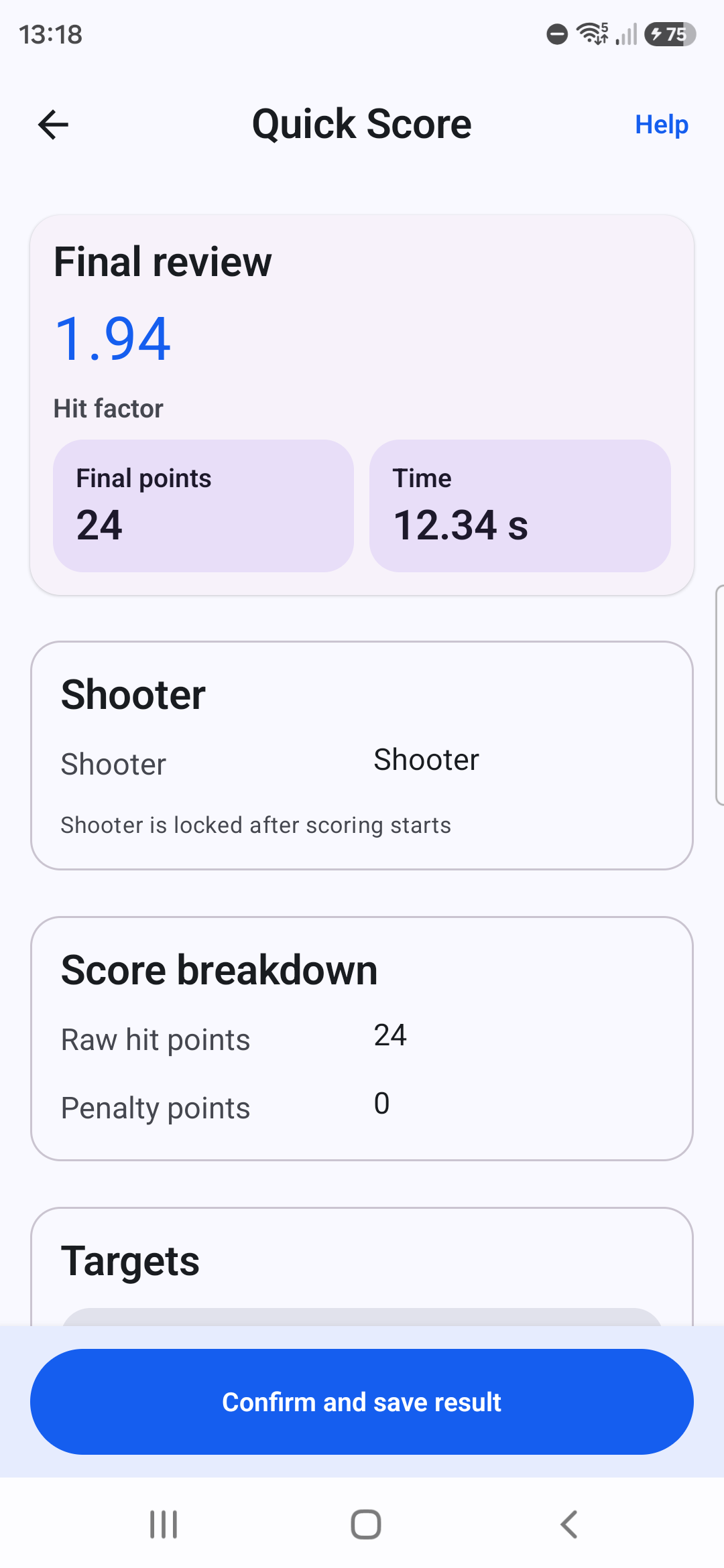
Final review is the last checkpoint before a completed result is stored.
Procedure
- Review final points, raw hit points, penalty points, elapsed time, hit factor, and every target.
- Use Change beside targets, time, Procedural penalties, or the optional note when something needs correction.
- Choose Confirm and save result only when the complete result is correct.
- After a successful save, choose Score another for this shooter to reuse the setup, or Home to finish.
Shooter management
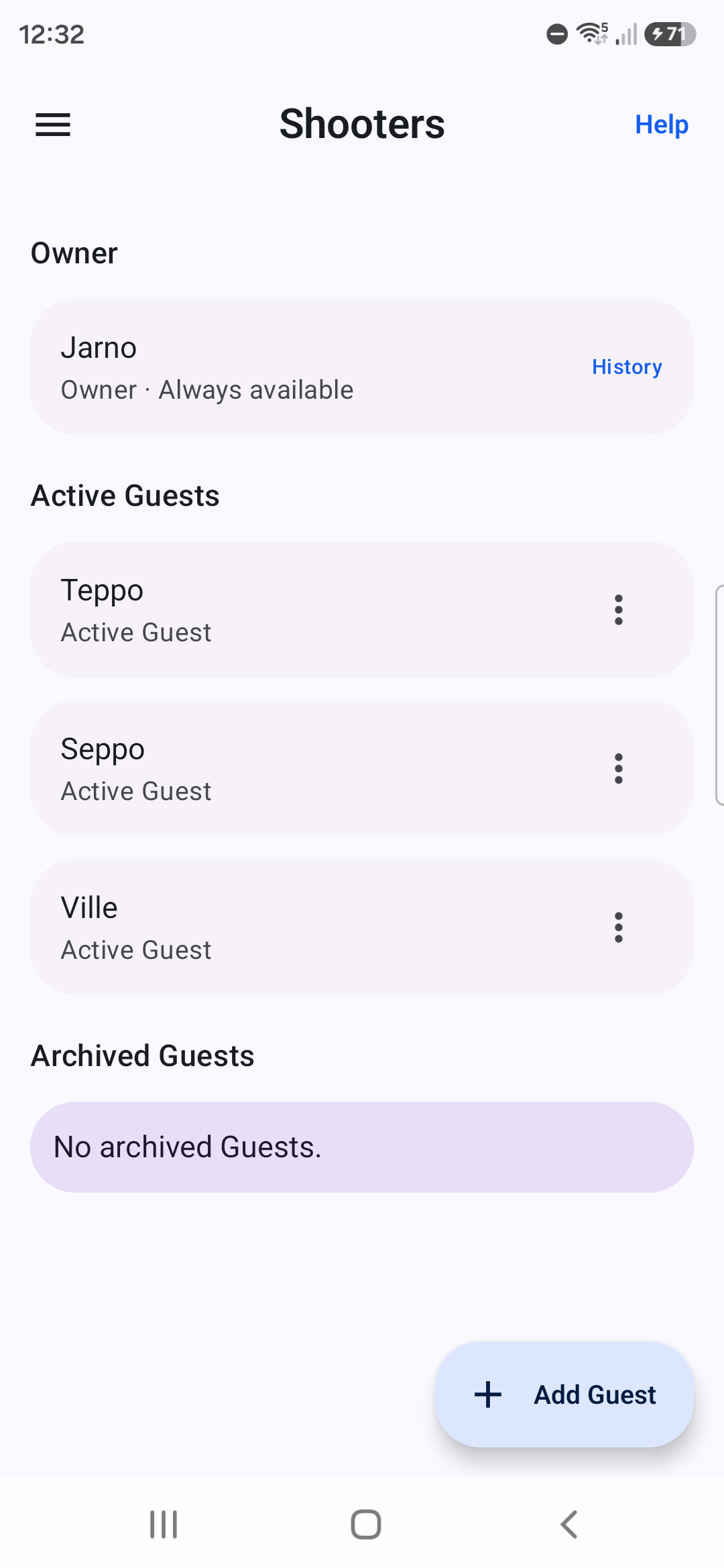
The protected Owner is the primary local shooter. Guests are reusable local profiles for other participants.
Procedure
- Open Settings, then Shooters.
- Rename the Owner when needed, or add and rename Guest shooters.
- Open History from a shooter to view that person’s saved results.
- Archive a Guest to hide the profile from new scoring while preserving History; restore the Guest to use it again.
Shared Stage
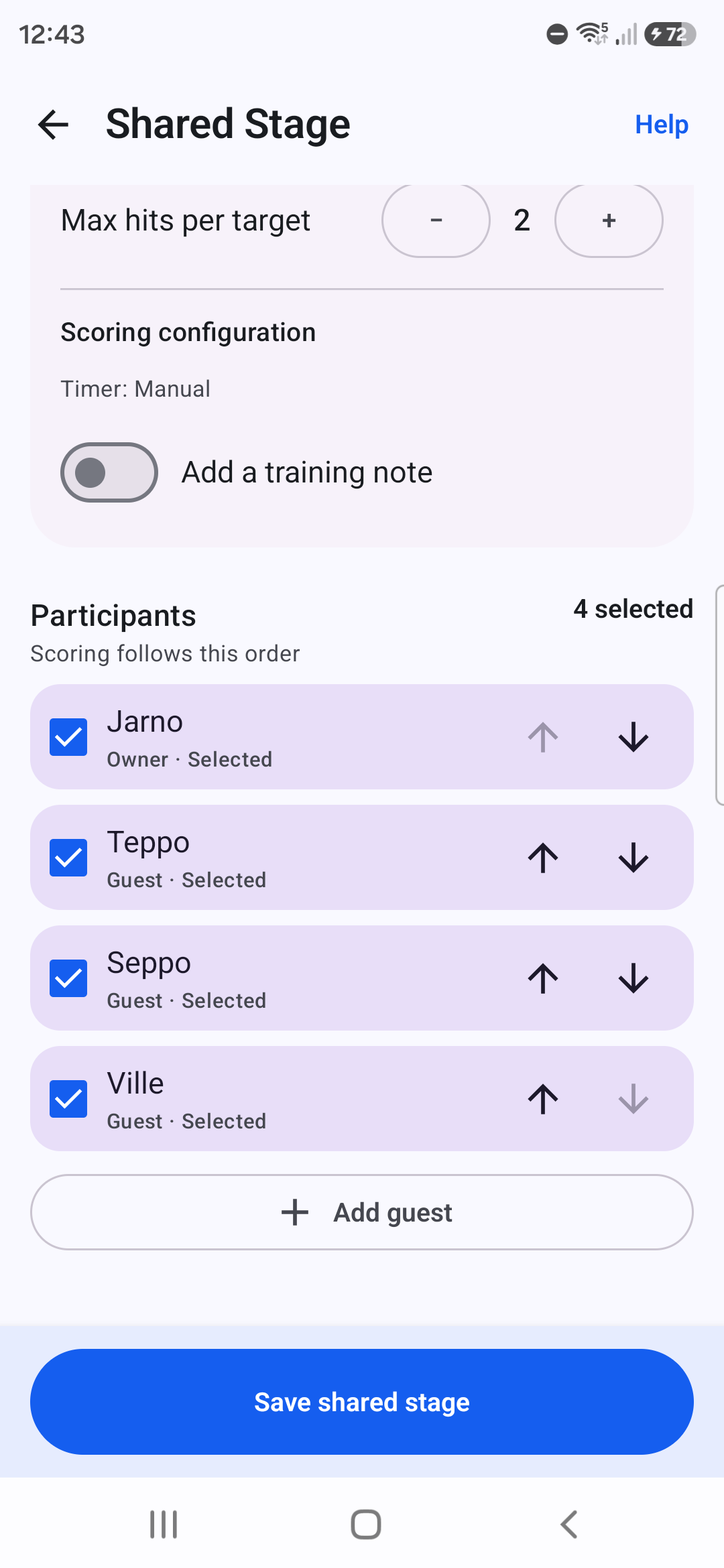
Shared Stage applies one setup and scoring order to several local participants.
Procedure
- Choose Shared Stage, enter the stage name, target count, maximum hits, and whether participants may add notes.
- Select the Owner and Guests, arrange the scoring order, and choose Save shared stage. Saving the roster does not start scoring.
- Select a pending participant and choose Start. Use Resume for an active attempt; Recommended next identifies the next available roster position.
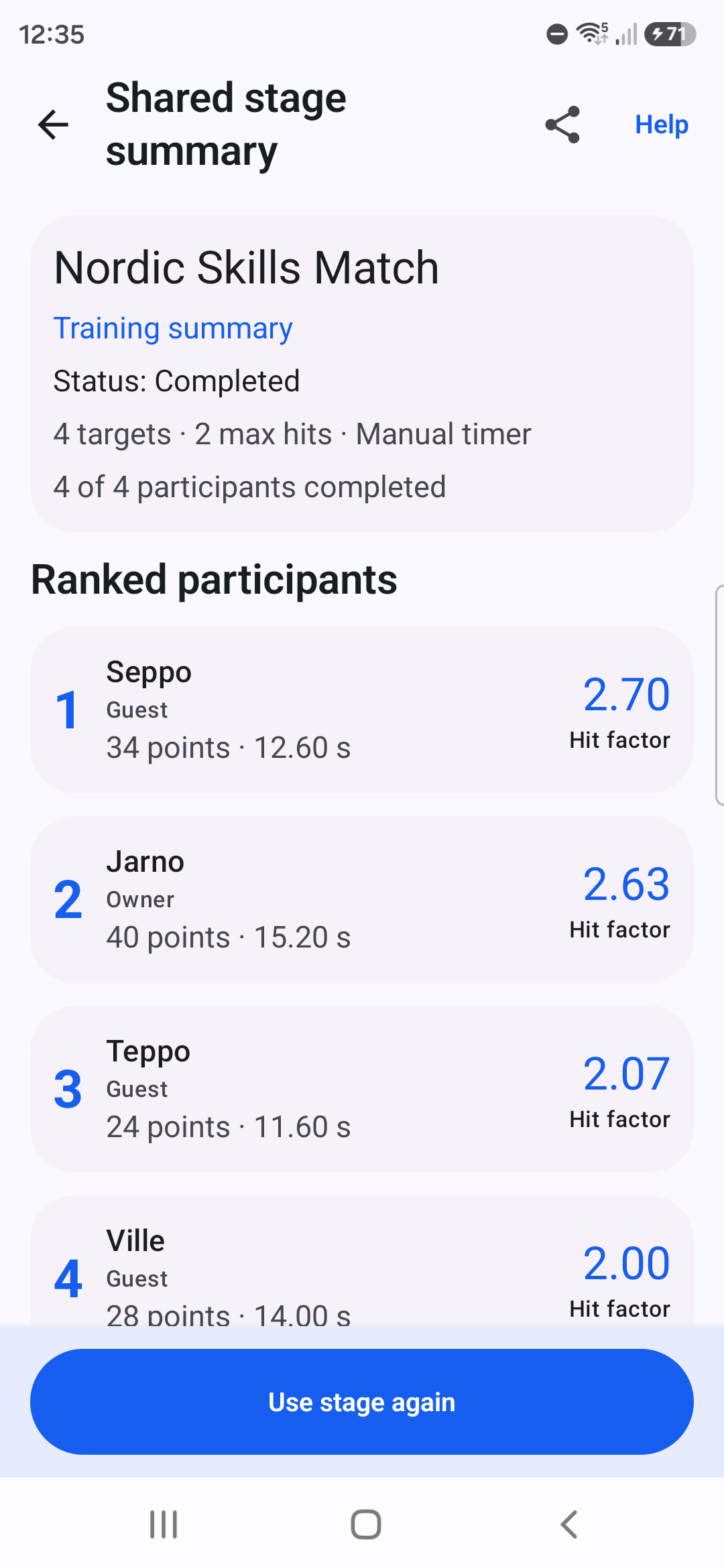
- Finish a completed stage. If you Abandon it, completed results are preserved but no more participants can be scored.
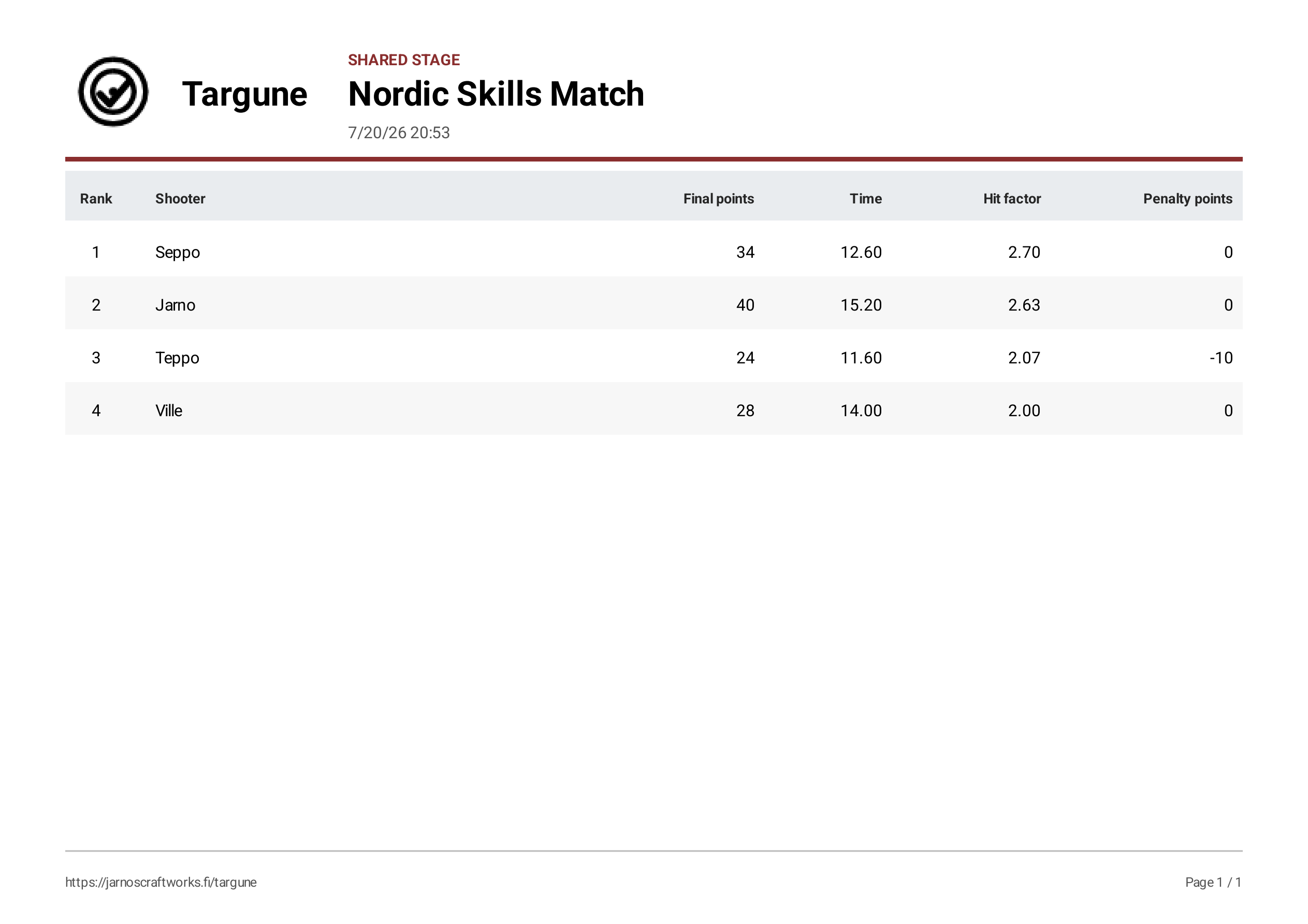
- Review ranked and unranked entries in the summary. Use stage again to create a new Shared Stage with the same setup when available.
Keep in mind
- Discard attempt removes that participant’s confirmed attempt.
- Withdraw prevents a participant from being scored.
- Shared Stage results stay linked to the stage and cannot be deleted individually from Result detail.
History and editing results
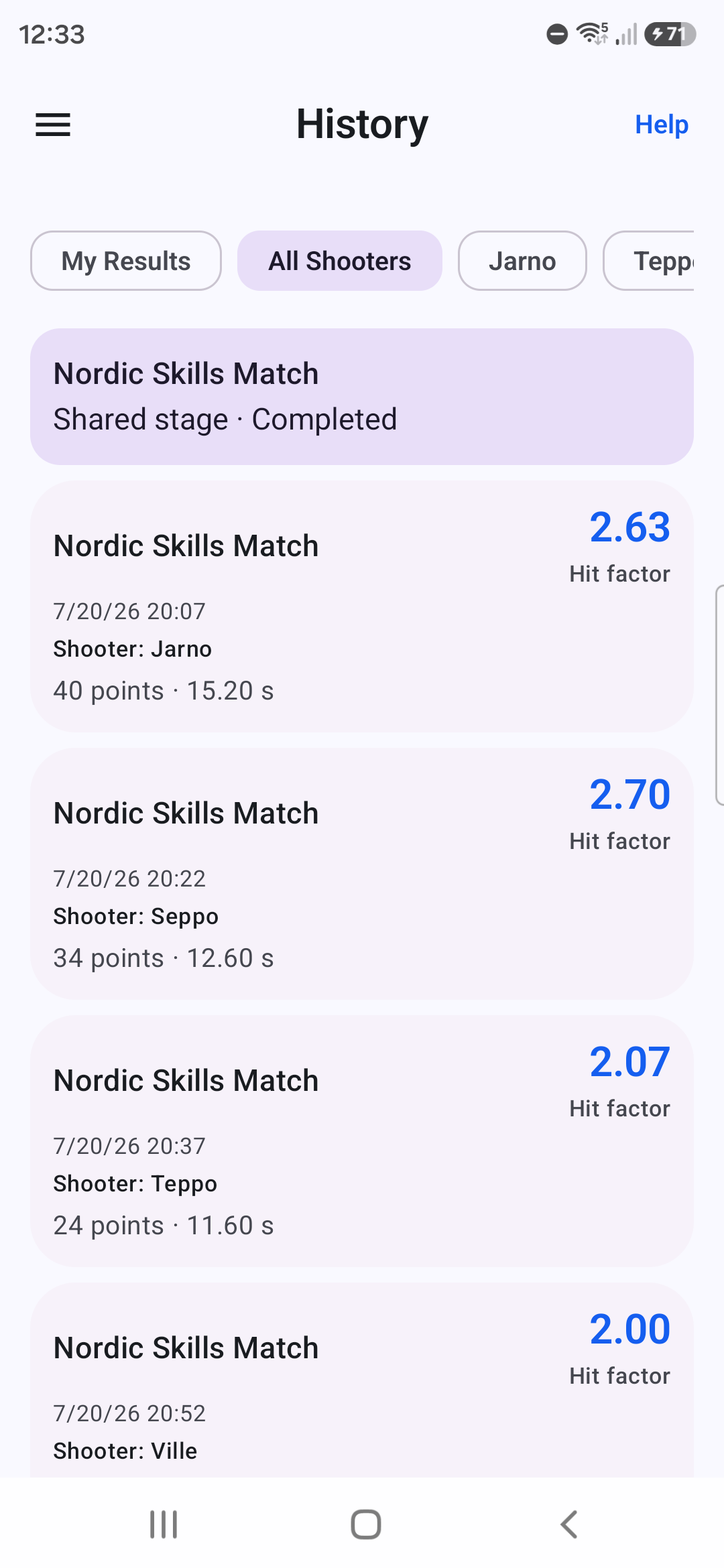
History lists standalone Quick Score and Shared Stage results saved on this device.
Procedure
- Open History. My Results shows the Owner; All Shooters also includes Guests.
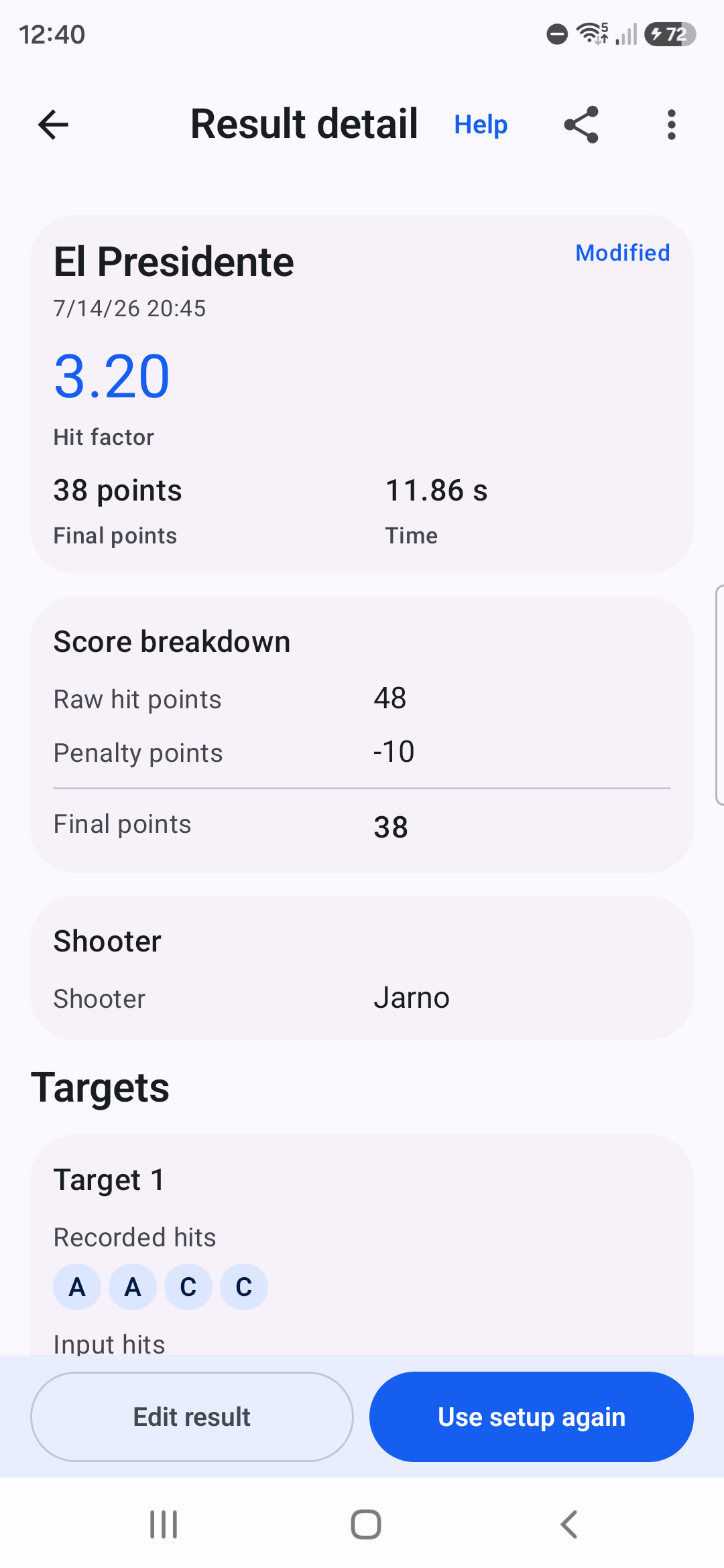
- Open a result card to inspect targets, penalties, time, note, rule version, and modification metadata.
- Choose Edit result when the stored rule set supports editing. Adjust the available fields, then choose Review changes.
- Inspect the recalculated result and explicitly save the correction. Cancel leaves the stored result unchanged.
Keep in mind
- A linked Shared Stage result keeps its stage name and link.
- Generic result-level MISS and NO SHOOT cannot be newly added; legacy fields appear only when the historical result already contains them.
- Use setup again reuses the stage structure for a standalone Quick Score when the shooter is available.
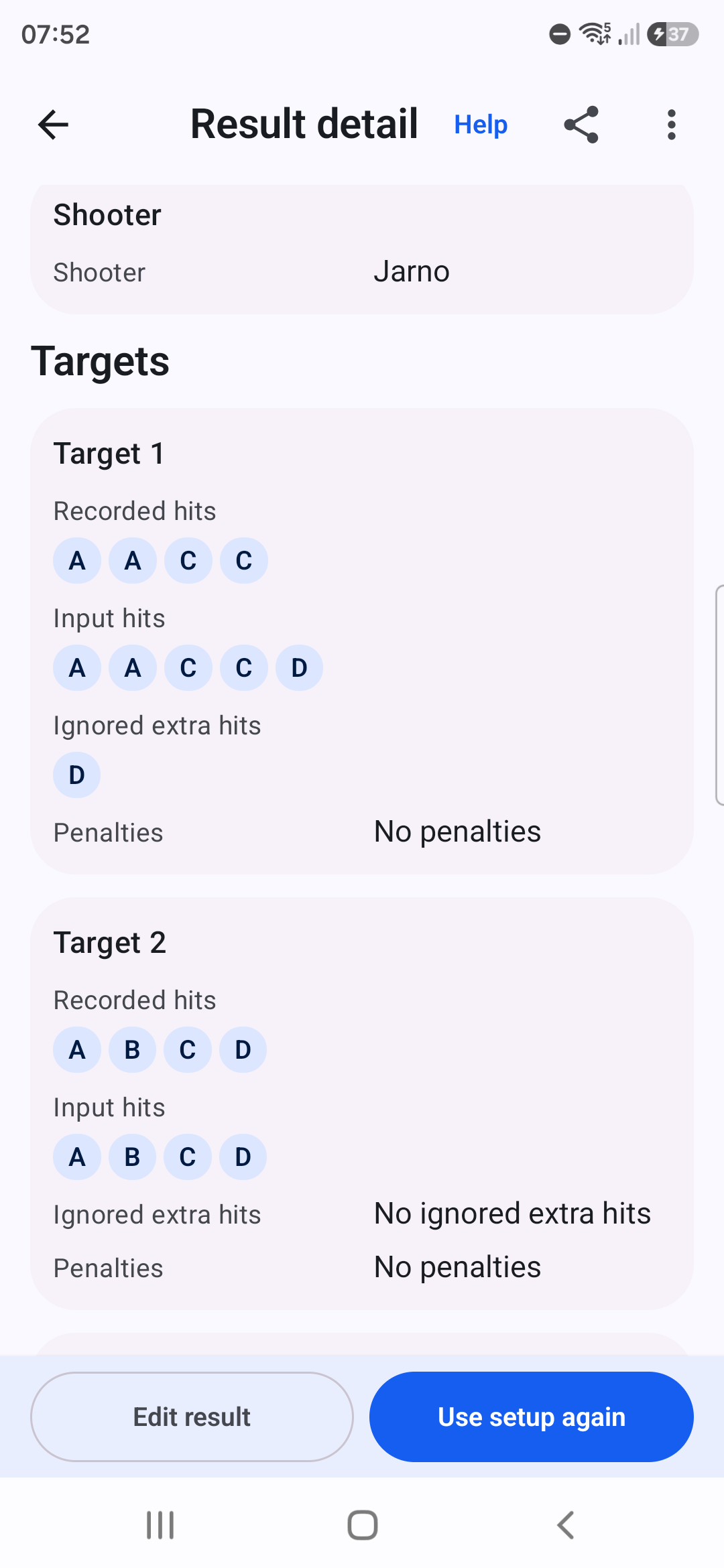
Sharing results and PDFs
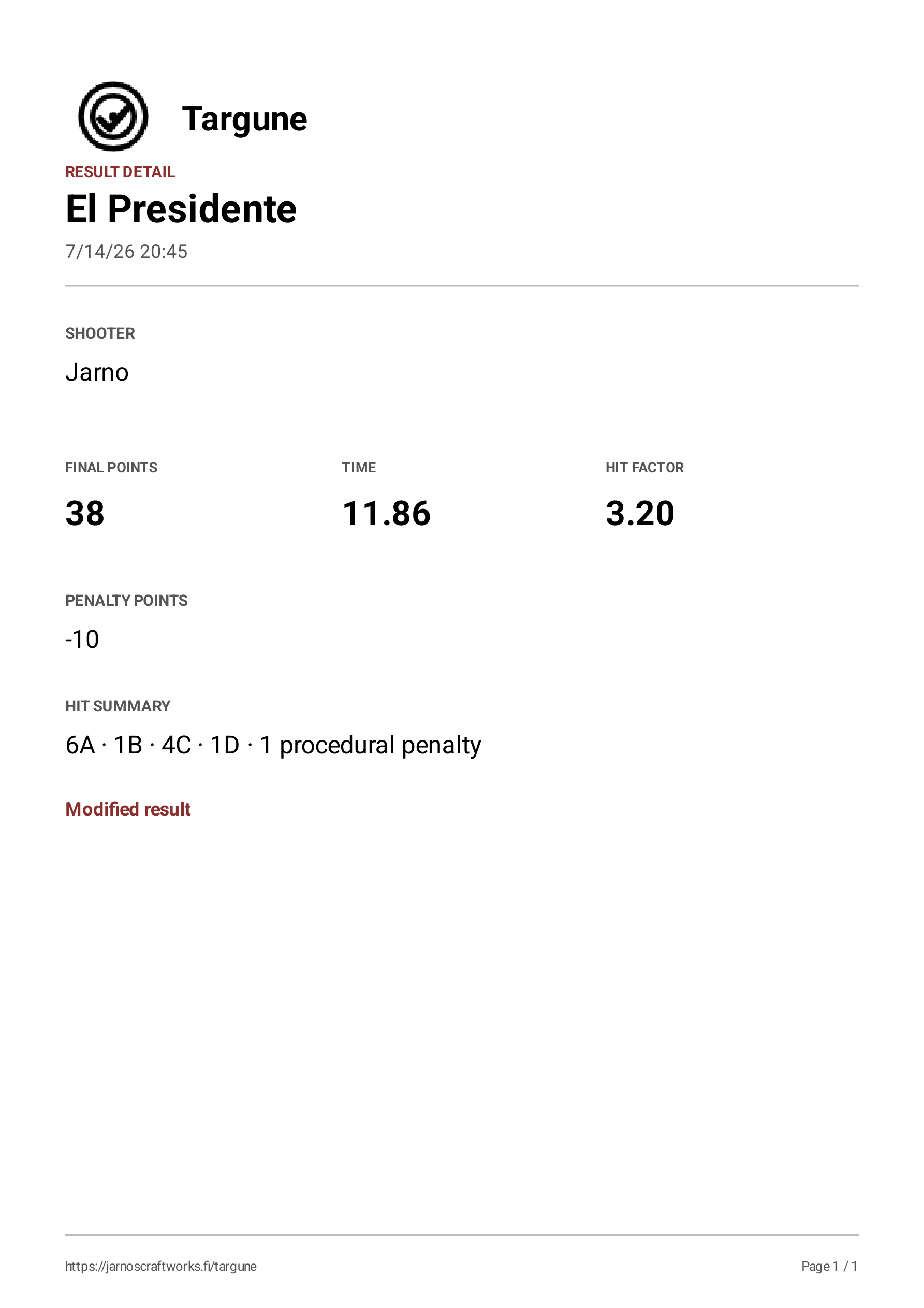
Targune generates PDFs locally from the values currently saved in the result or Shared Stage.
Procedure
- Open Result detail and choose Share result for an individual report, or open a completed Shared Stage summary and choose its share action.
- Wait while Targune prepares the PDF.
- Choose the destination in Android’s share sheet. Targune does not send the file until you choose a destination.
Settings and language
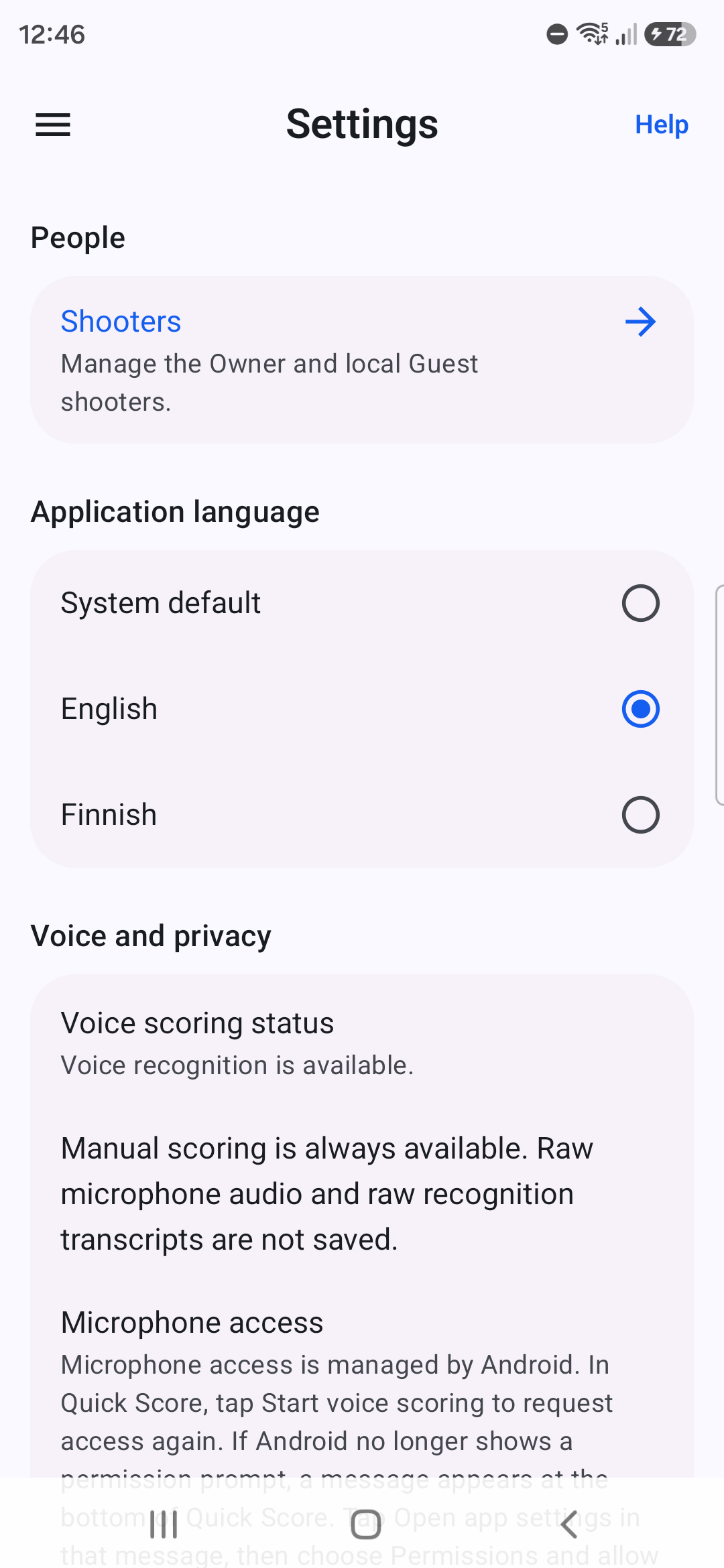
Settings manages shooters, the interface language, voice capability information, microphone guidance, and onboarding.
Procedure
- Open Settings from the main navigation.
- Choose English or Finnish under Language. The interface changes immediately.
- Open Voice and privacy to review the installed voice capability and microphone guidance.
- Choose Reset welcome only when you want to see onboarding again.
Draft recovery
Targune saves confirmed Quick Score progress so an interrupted score can continue safely.
Procedure
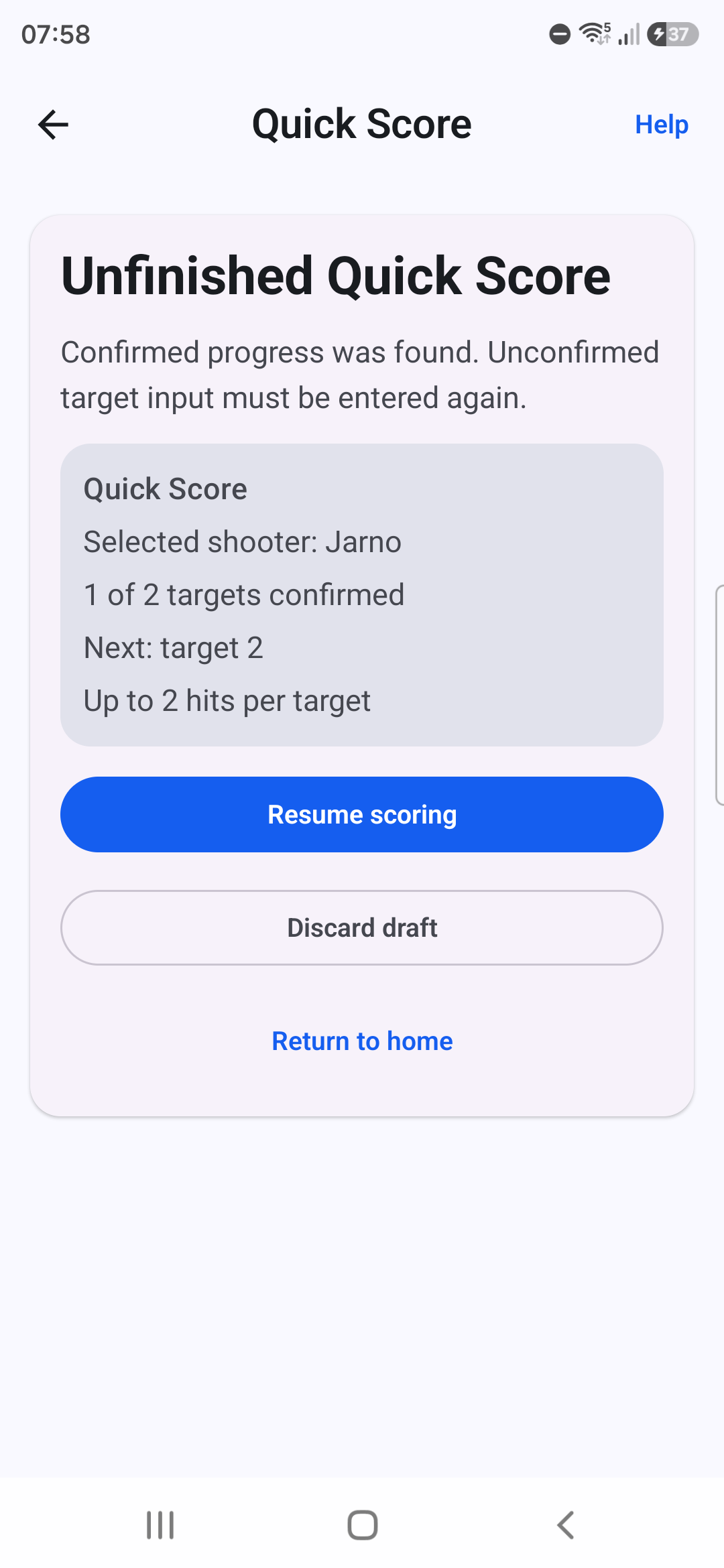
- When Unfinished Quick Score appears, choose Resume scoring to restore confirmed progress and continue from Time, Targets, Procedural review, Note, or Final review.
- Re-enter any unconfirmed target input; it was not saved.
- If safe recovery is unavailable, return Home or discard the draft when offered.
- Use Discard draft only when you intend to permanently remove the unfinished confirmed progress.
Troubleshooting
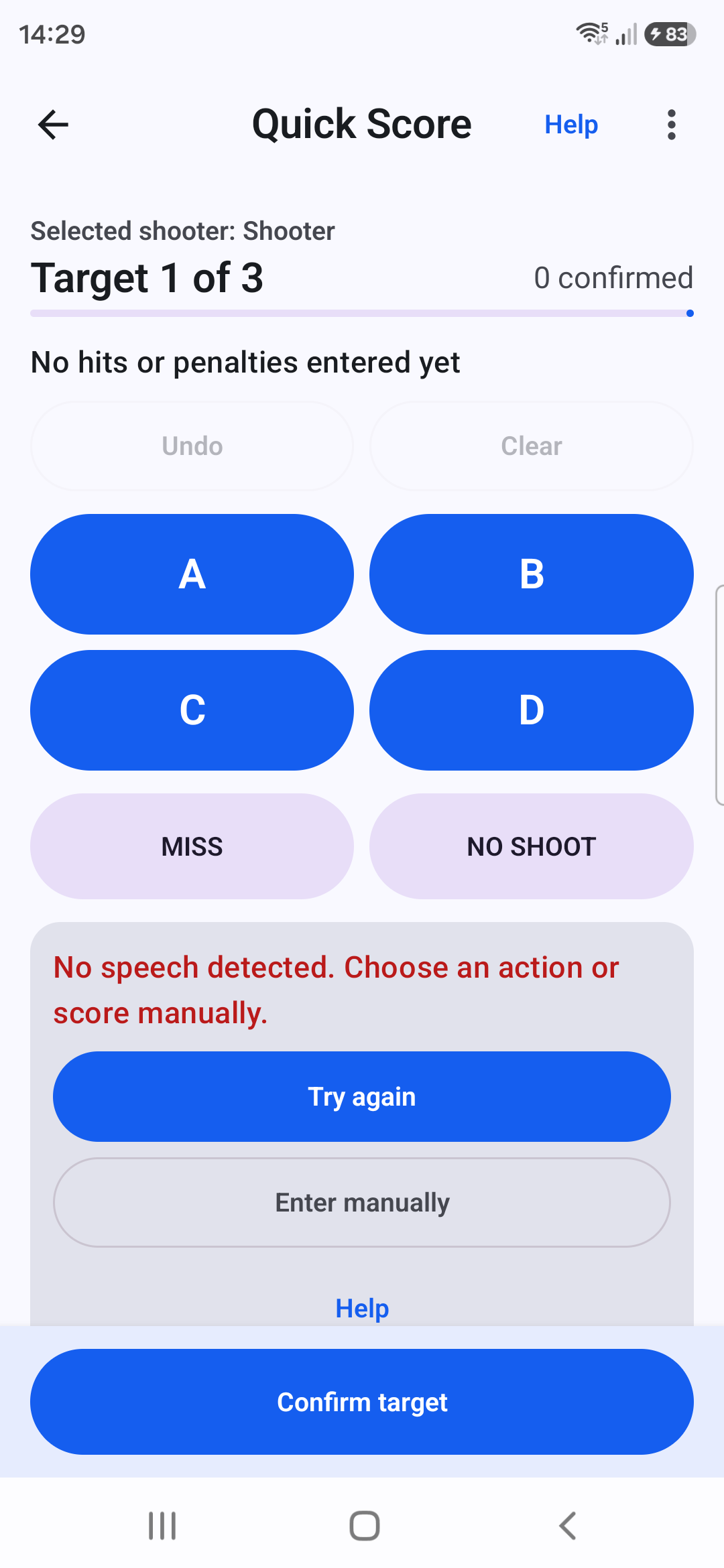
A failed or timed-out voice attempt does not change the target and does not restart the microphone automatically.
Procedure
- No speech or timeout: choose Try again to start a new attempt, or Enter manually.
- Permission denied: choose Enable voice input to ask Android again, or continue manually.
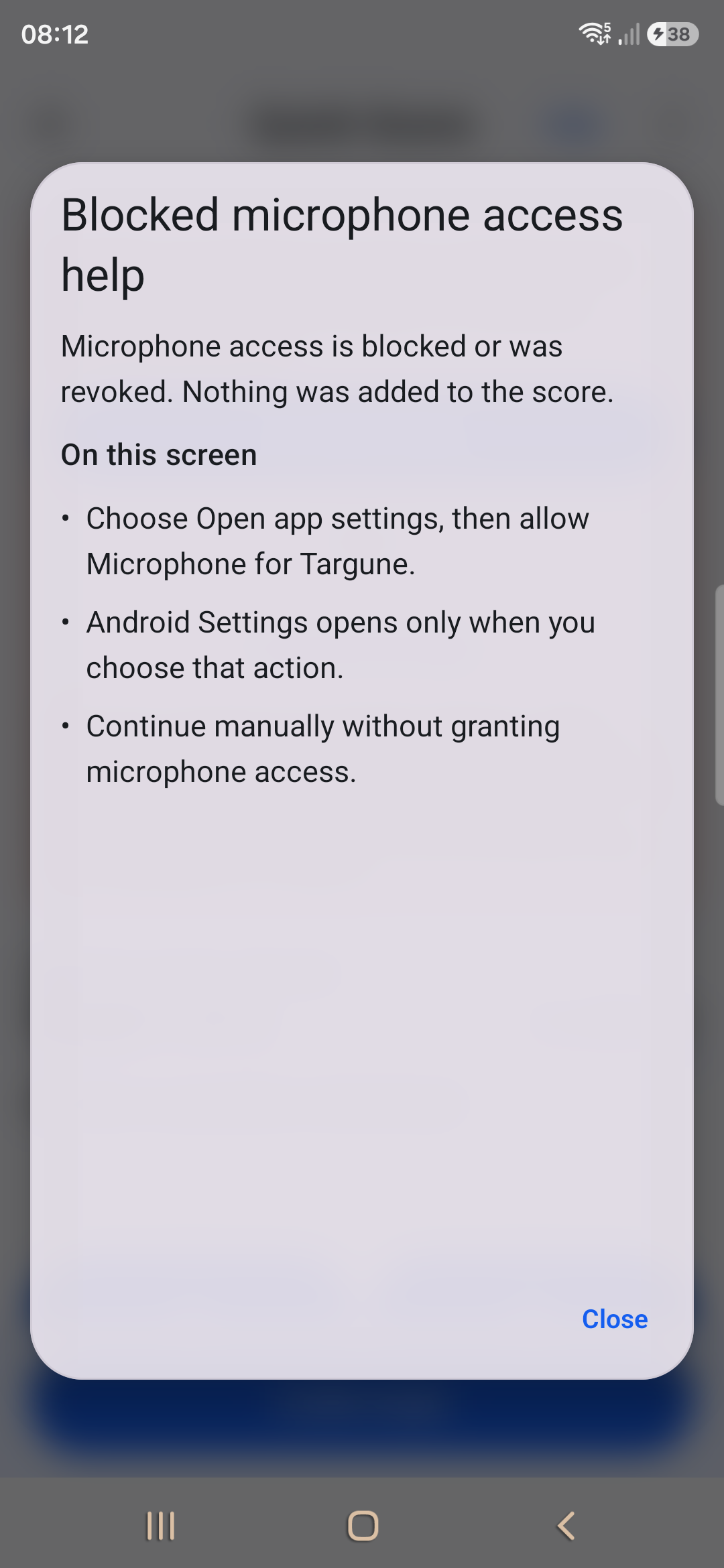
- Permission blocked or revoked: choose Open app settings, open Permissions, and allow Microphone for Targune only if you want voice input.
- Voice model unavailable or initialization failed: continue manually. Voice may remain unavailable for the rest of that app session.
- PDF preparation or save failure: keep the current screen open and use the offered retry. Do not assume the result or report was completed.
Privacy and offline use
Core scoring is local and offline-first. Targune does not require an account or cloud speech recognition.
Procedure
- Use manual scoring, History, draft recovery, and PDF generation without relying on a Targune cloud service.
- Start microphone use only when you choose voice scoring. Recognition runs locally with no cloud speech fallback.
- Review any generated PDF and choose its destination yourself in Android’s share sheet.
- Keep the device and its local results protected according to your own training and privacy needs.
Keep in mind
- Raw microphone audio and recognition transcripts are not saved by default.
- Training notes stay with saved results but are excluded from shared PDFs.
- Screenshots in this guide support the instructions; the written steps carry the complete procedure.
Need more help?
Open Help on the relevant app screen first. If the problem continues, include the Targune version, device model, Android version, and a concise description of what happened.